The path from code to assistive technology


The path from code to assistive technology
When we imagine how our code goes from text in our editors to an experience on a user’s device, it can be easy to picture a straight line. The browser takes HTML, CSS, and JS and, through various calculations and paints, turns that into a user interface. But this mental model only tells part of the story.
For people who rely on screen readers and other assistive technologies, the path from code to user experience is different. Their experience isn’t limited to what we can see on a screen. It is also shaped by a semantic representation built from the same source that may complement the visual interface or, for some users, replace it entirely.
This article aims to expand your mental model of how code reaches users, moving from one that focuses solely on the path to visual interfaces to one that includes the journey to assistive technologies.
The default mental model
Our journey begins in a familiar place for many developers — the Document Object Model (DOM).
If you’ve ever debugged in a browser, you’ve worked with the DOM. It lets us inspect elements, debug layout issues, and gain a general understanding of what’s happening on the page. Even when using frameworks like React or Vue, the DOM is still there shaping how everything works and how we understand it.
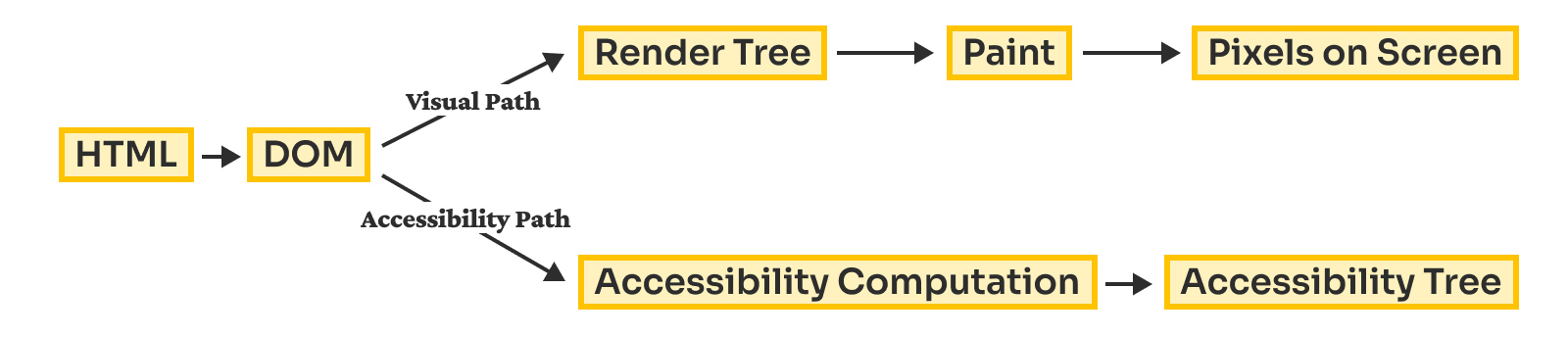
The browser parses HTML to build the DOM. It also processes CSS to create the CSS Object Model (CSSOM). These two structures are combined into the Render Tree, which is then used to calculate layout and put pixels on the screen.
Right now our map looks like this:

A more inclusive model
With the DOM complete, the browser uses it to construct another, separate structure called the Accessibility Tree (AX Tree).
We start from the same place to get here, but we have now stepped down a parallel path alongside the one we just explored.
The Accessibility Tree
While the DOM is designed for rendering UI and defining behavior, the Accessibility Tree is purpose-built for assistive technologies.
Every node in the Accessibility Tree exposes a small set of critical properties. While implementations vary across platforms, four concepts are foundational:
- Name: What is this thing called? (e.g., the accessible name of a button)
- Description: What additional context does this thing carry? (e.g., a summary explaining what data a table contains)
- Role: What kind of thing is it? (button, heading, list, checkbox, navigation landmark)
- State: What condition is it currently in? (checked, expanded, disabled, selected, busy)
These four properties combine to form an interface that assistive technology can interact with, allowing users to navigate, understand, and operate our applications.
While the Accessibility Tree is derived from the DOM, it is not a 1:1 copy. Instead, it is filtered to contain only what is meaningful to assistive technology. It will be stripped of decorative images and elements that exist to support visual layout, distilling it into a version focused on structure and interaction.
We can better understand this with an example:

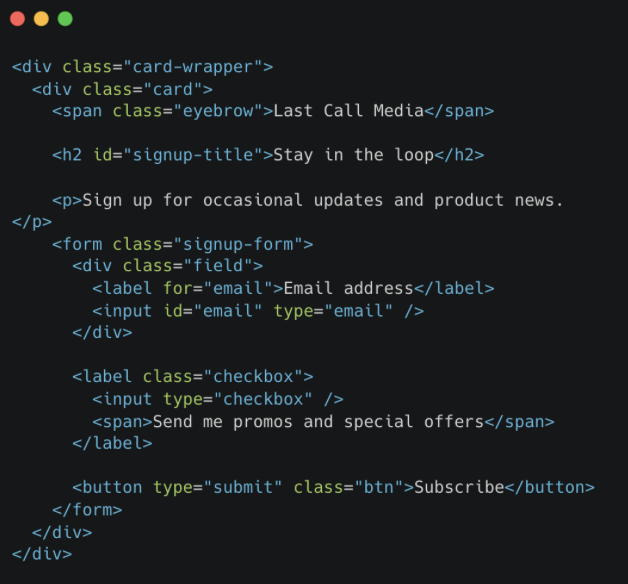
This example shows a simple signup card, including the HTML that builds it. Now let’s take a look at both the DOM Tree and the Accessibility Tree that are created as a result.
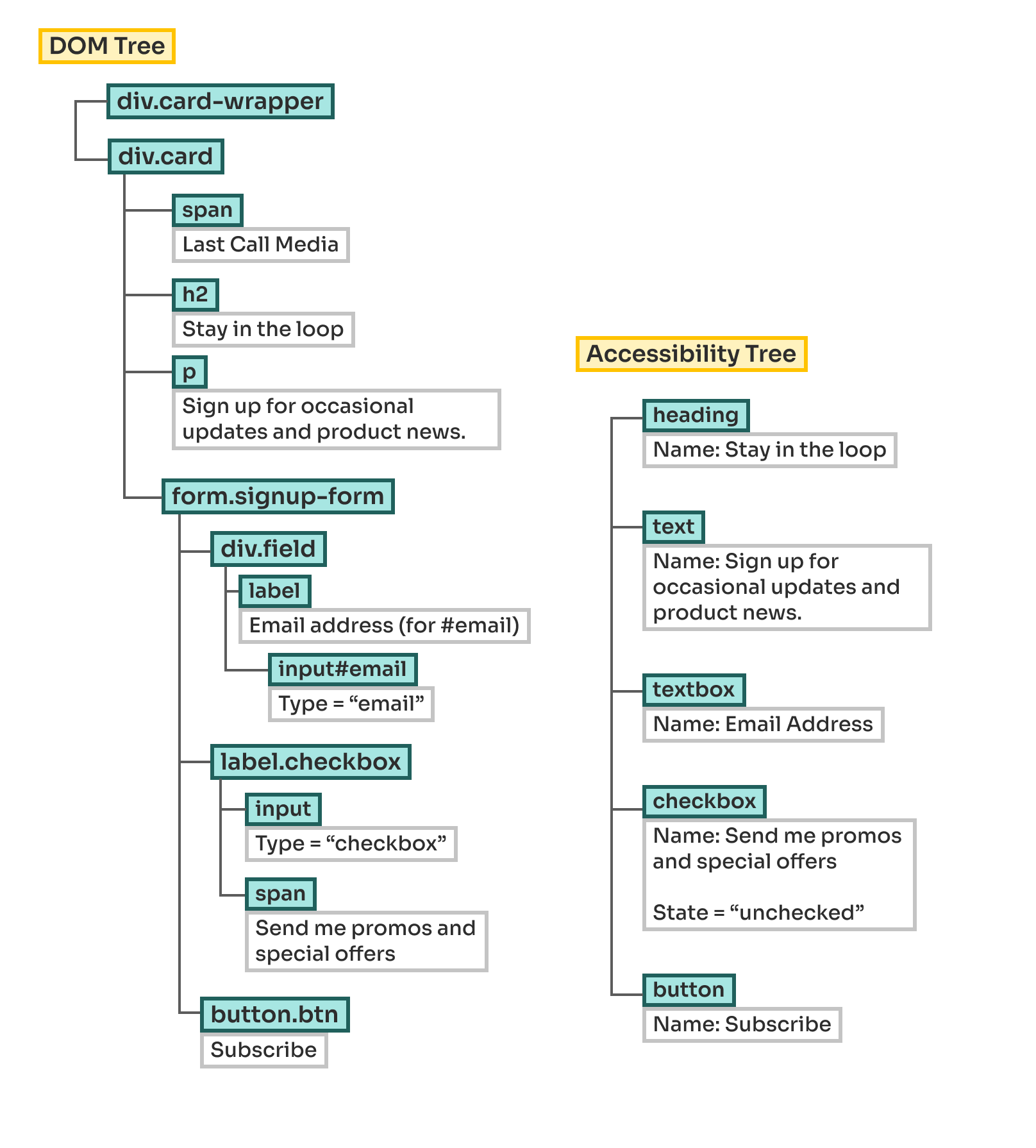
During the accessibility computation, the browser filtered the DOM, pulling out what actually matters for assistive technology. We’re left with the heading, text content, the email address textbox, a checkbox, and the subscribe button. Everything else has been left out — including the wrapper divs, layout containers, and extra spans.
In some cases, an element isn’t lost entirely, but is instead merged with others into something more meaningful. For example, the email label and input became a textbox with a name, and the checkbox and its text became a single control with a name and state.
Tip: You can inspect the Accessibility Tree yourself using your browser’s developer tools. Chrome, Firefox, and Safari include accessibility tools that let you see how elements are represented to assistive technology, including their roles, names, and states.
The OS Accessibility API
Because browsers don’t communicate directly with screen readers, there’s still one more step before assistive technology can use the Accessibility Tree. This step is the browser exposing the Accessibility Tree to the OS through a platform-specific Accessibility API.
Every operating system and device has its own implementation, but they each act as a translator. They take the structured information in the Accessibility Tree and expose it in a standardized way so that assistive technologies can query, navigate, and respond to it.
I could write a whole article about how assistive technology consumes the OS layer — but the main thing to know here is that many will go on to build their own internal models of the page. This model, sometimes called a “virtual buffer”, represents yet another layer of abstraction before the application can finally be consumed by the user.
This means our map can extend again:

Now that we’ve progressed down this new path — through the perils of accessibility computations and semantic flattening — there’s another important detail. This is a process that never really stops.
Every time the DOM changes, the browser reevaluates the Accessibility Tree. Every time the Accessibility Tree changes, those updates ripple through the accessibility APIs. As this happens, assistive technologies are listening, ready to react to changes and rebuild their understanding of the interface in real time.
To illustrate, let’s imagine we clicked the “Send me promos and special offers” checkbox from our earlier example.
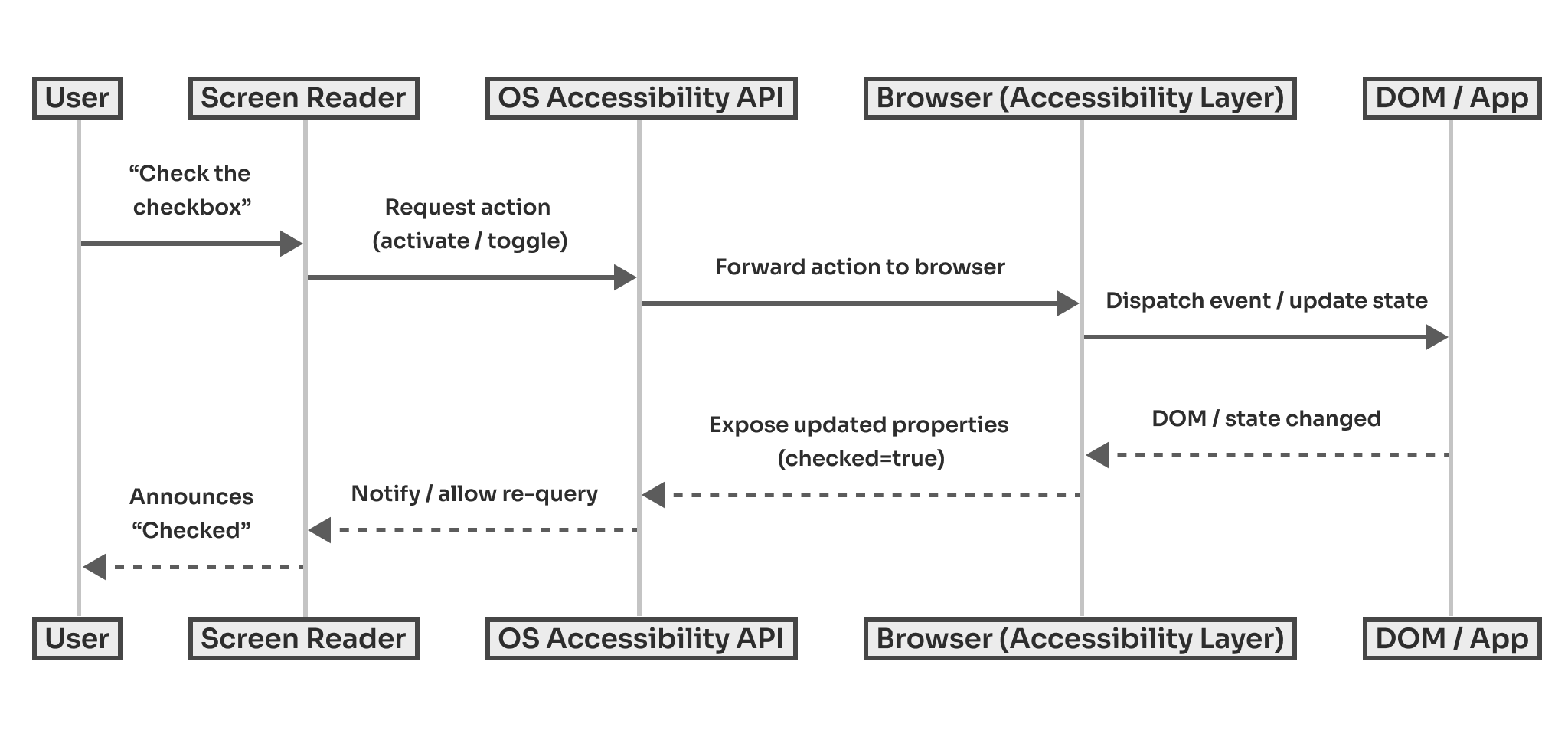
Our action is sent through the screen reader to the accessibility API, which forwards it to the browser. The browser updates the DOM and changes the state of the checkbox.
Next, the process reverses. The browser exposes the updated “checked” property back through the accessibility API. The screen reader picks this up and announces the change to the user.
Every time something changes in the DOM, the accessibility layer updates and the cycle starts again. This ensures that what’s exposed to assistive technology is always in sync with the UI.
Coding meaningful experiences for assistive technology users
All the paths we explored today lead us to a simple, if slightly self-evident, truth: assistive technology users do not interact with visual UI, they interact with a semantic representation of it.
When a sighted user visits a web page, they may draw connections from things like color and layout, and click based on what “looks clickable.” An assistive technology user builds a mental model from the structure, sometimes navigating through lists of headings or jumping through regions defined by the page’s landmarks.
A missing label, incorrect role, broken focus management, or misused ARIA can fundamentally change how assistive technology users understand an interface. The visual UI and the semantic experience can drift apart until two users are effectively interacting with different applications.
The path from code to assistive technology is not a single step or collection of steps, but a chain of transformations. The browser builds an Accessibility Tree from the DOM and exposes it through the operating system’s accessibility APIs, allowing assistive technologies to turn it into something meaningful for the user. Every part of the journey depends on clear and correct semantics, intentional structure, and predictable behavior.
We’ll explore these topics more deeply in an upcoming article — looking at accessibility patterns, common anti-patterns, ARIA misuse (and overuse!), and the subtle ways the decisions we make shape the experience of assistive technology users.