MyPDF A11y: Scan PDFs for Accessibility at Scale


We built a tool to find and scan PDFs for accessibility at scale
Governments are working hard to make their digital content accessible, but when it comes to PDFs they have a big challenge on their hands. Most teams we’ve spoken to already understand the requirements for accessible PDFs under the ADA or Section 508. The harder part is knowing where to start and how to tackle the task at scale — especially when PDFs have accumulated over years across every corner of your system, often uploaded by staff who have long since moved on.
Our team at Last Call Media saw this gap and decided to do something about it. The result is MyPDF A11y, an accessibility platform that helps organizations discover, scan, and continuously monitor their PDFs for accessibility issues. It gives teams a way to move from reactive, manual auditing to a proactive approach where accessibility is embedded in their workflows.
We’re initially launching MyPDF A11y as a pilot, with plans for evolving it into a paid app.
Early testing and the lessons we learned
Building MyPDF A11y meant working through some interesting problems around accuracy, scale, automation, and cost. Here are some of the lessons we learned along the way that have shaped the final product.
Existing open-source tools don’t have the accuracy or scale gov teams need
We began by looking at existing PDF accessibility checkers, trying various open-source options with strong reputations in the a11y space. But we found they didn’t hold up well for accuracy or the scale we needed. So we built our own custom Python-based scanner from the ground up.
Testing our scanner against Acrobat Pro yielded some exciting results. Not only did our tool measure up well, it sometimes outdid Acrobat Pro. In one instance, our scanner caught an image without alt text that Adobe missed entirely. In another, it correctly identified that a heading issue that Adobe had flagged wasn’t actually a problem.
Users need greater control when scanning for PDFs on large sites
We tested an early prototype on small sites, including our own, which worked well. But the real test was a large government site. We chose PA.gov, which houses thousands of PDFs, and found the scan times became quickly unmanageable.
The solution was to give users more control over the scope of their scans. We added max crawl depth and max page count settings, allowing teams to focus a scan on a specific section of a site, or cap how deep the crawler goes. This made scans much faster and significantly more practical at government scale.
Government teams want to scan PDFs in bulk and automate it
We showed an early version of MyPDF A11y to a team supporting testing at a state agency. They found scanning one PDF at a time was slow and tedious, and asked us whether we could build out a feature for uploading and scanning PDFs in batches. They also raised something we hadn’t thought of — could new PDFs be automatically scanned when added to a designated folder? We looked into both and found they were feasible, so we built them.
Minimizing storage is a good way to keep costs down for teams
Storing large volumes of PDFs in the cloud can get expensive quickly, which would have been a real barrier for organizations managing thousands of documents. Our developer Aram found a straightforward solution: temporarily save each file to Amazon S3, run the scan, then delete the file. The scan results are kept; the PDF itself isn’t stored. This keeps storage costs to a minimum and scales well to any volume.
The result: A complete platform for PDF accessibility
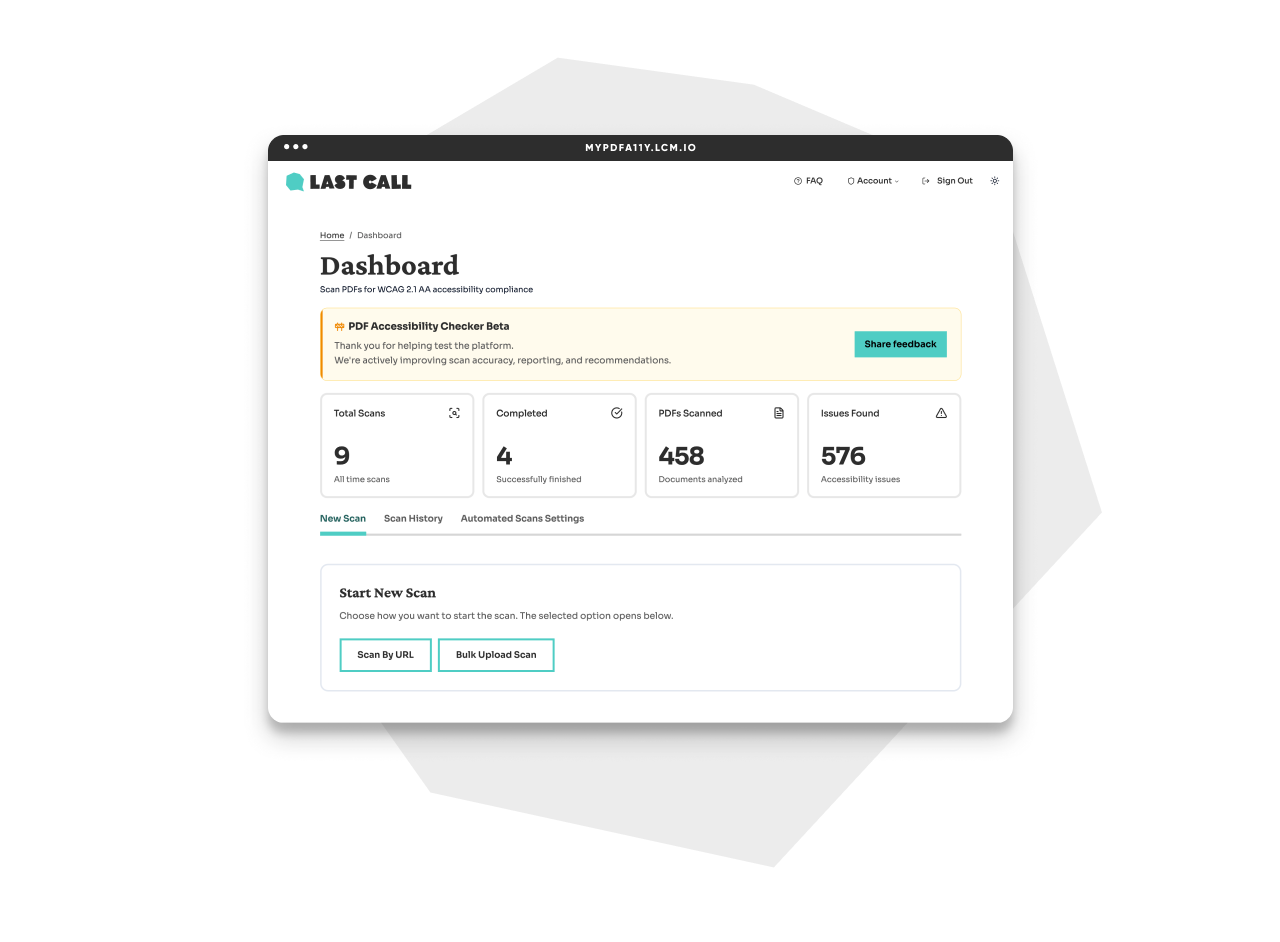
MyPDF A11y supports three workflows, designed to meet organizations wherever they are in their PDF accessibility journey.
#1 Find and scan public PDFs on your site
The Website PDF Scanner tool crawls a website to locate publicly-available PDFs, then lets you choose which ones to scan for accessibility issues.
- Set a max crawl depth and page count to keep scans targeted and manageable.
- Find each PDF’s location with its URL and a clickable link to the PDF.
- Select all or a selection of your PDFs to scan for accessibility issues.
- Runs checks against WCAG 2.1+ and PDF/UA best practices.
- Progress bar shows number of PDFs found, pages visited, and scan status.
- See the number of issues and their severity (classified using WCAG and axe standards).
- See suggestions for remediation, with plain-language explanations explaining each issue and why it matters.
- Download PDF accessibility reports, with each issue clearly highlighted.
- Revisit previous scans in your scan history, without having to re-run them.
- Export the issue list to help you document progress toward compliance.
#2 Bulk upload and scan PDFs for accessibility issues
Documents that aren’t publicly accessible — like those sitting behind login pages, in internal workflows, or staged before publication — can be uploaded and scanned in large batches with the Bulk PDF Upload & Accessibility Scanning tool.
- Upload one or multiple PDFs at once.
- Results are mapped to WCAG and PDF/UA standards.
- See an accessibility score for each document, as well as severity ratings, plain-language explanations, and remediation guidance.
- Files are automatically deleted after scanning to save space, with only results stored.
#3 Automate accessibility checks for PDFs in a specific folder
For teams that generate PDFs on a recurring basis, the Automated Accessibility Checker helps ensure continuous compliance. Accessibility checks happen as documents are created, rather than weeks or months later when issues can be harder to address.
- Designate a Google Drive folder for continuous monitoring.
- Run accessibility scans automatically when a new PDF is added to the folder — no manual action required.
- Scan results are stored and reports update automatically.
- Get optional notifications when scans complete.
Benefits of using MyPDF A11y for your organization
Whether you want to understand the scope of your PDF challenge or you’re ready to address accessibility issues at scale, MyPDF A11y meets you where you are.
MyPDF A11y can help teams:
- Get a clear picture of how many PDFs exist across your digital platforms.
- Catch accessibility issues before documents reach the public.
- Meet ADA and Section 508 requirements with confidence.
- Shift from reactive auditing to continuous checks.
- Reduce the manual effort of scanning documents individually.
- Document progress for leadership, auditors, or compliance review.
We’re excited to see what MyPDF A11y can do for your public service team. Learn more about our approach to digital accessibility, or get in touch to discuss your specific accessibility challenges.
This article was created in partnership with our content writer, Peggy McGregor.
Frequently asked questions.
MyPDF A11y is a PDF accessibility scanning platform built by Last Call Media. It helps organizations discover all the PDFs on their website, scan them for accessibility issues, and set up continuous monitoring so new documents are checked automatically. It’s built for any organization managing a large volume of PDF documents, including government agencies and education institutions.
MyPDF A11y checks PDFs against WCAG (Web Content Accessibility Guidelines) and PDF/UA (Universal Accessibility) best practices. These are the standards referenced by Section 508 of the Rehabilitation Act, which applies to federal agencies, and the Americans with Disabilities Act (ADA), which applies to state and local government bodies.
Yes. Files uploaded for scanning are temporarily saved to Amazon S3, scanned, and then deleted. Only the scan results are stored — the PDF itself is not saved. A disclaimer in the interface confirms this so that users know exactly what happens to their files.