Creating accessible Google Slides with MySlides A11y


Everyone wants to be clearly understood by their audience, whether you’re speaking at a conference, updating your team, educating students, or sharing content online. Slides are a great way to make your message hit home — except when they’re inaccessible.
Accessibility issues are easy to overlook when making slides, but they present significant barriers for people with disabilities. For example:
- Insufficient color contrast can make text unreadable for people with low vision or color blindness.
- Flashing animations can cause seizures, migraines, nausea, and vertigo in people with epilepsy.
- Missing alt text means images can’t be perceived by people who download your slides and use a screen reader.
Since 1 in 4 people have a disability, there’s a high chance some of them are in your audience. And as many organizations are now required to meet the Web Content Accessibility Guidelines (WCAG), creating accessible slides is more important than ever.
Don’t worry if you aren’t a WCAG expert though. Many people create inclusive content with the help of an accessibility checker — a digital tool that scans for accessibility issues and explains how to fix them. PowerPoint has a built-in checker. For Google Slides, you’ll need an add-on.
We searched for a Google Slides accessibility checker and found very limited options. So we built our own — and then made it available to everyone. MySlides A11y is free to install from the Google Workspace Marketplace. It runs 28 checks for common accessibility issues, delivering clear pass/fail results and practical advice so you can make fixes with confidence.
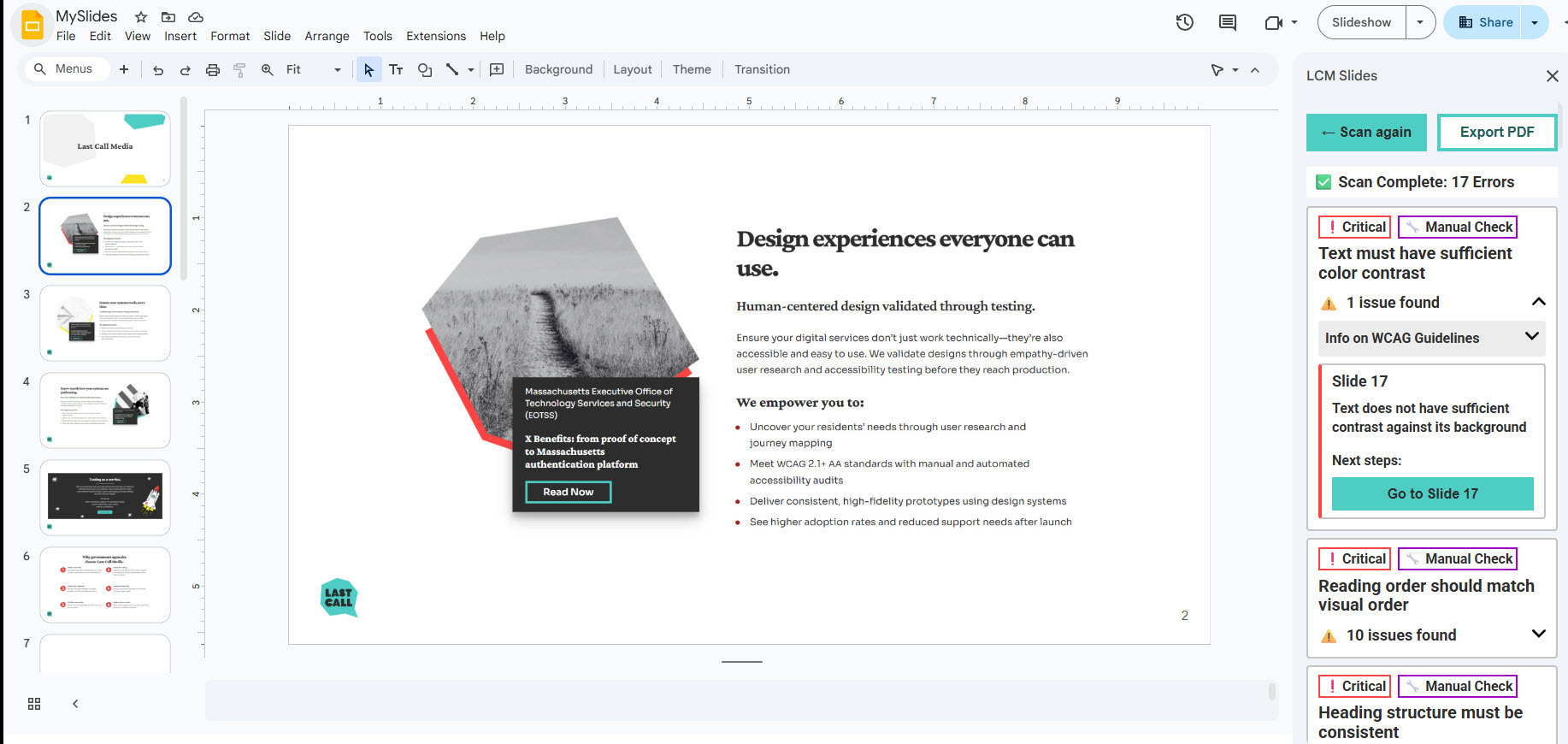
Learn more about our accessibility checker for Google Slides below, including what it checks, how to get started, and example scenarios for using it.
We wanted to build the best accessibility checker for Google Slides
We create a lot of Google Slides here at Last Call Media — for client pitches, kickoff meetings, training, and so on. We’re also committed to accessibility (“a11y”) across all our communications, products, and practices. But checking slides manually for accessibility was taking a lot of time. Also, it wasn’t realistic to expect all our colleagues to have equal knowledge of accessibility. We needed a tool to help us out, but the options available were extremely limited.
I talked to our Senior UX/UI Accessibility Designer, Yu-Li, about potential solutions. We asked ourselves: “Should we build our own accessibility checker for Google Slides?” It made sense — it would solve a real internal need, and it had potential to support accessibility in the wider digital community.
Our team quickly got behind the idea, contributing their engineering, UX/UI, and IAAP CPACC–certified expertise. We analyzed various accessibility tools to identify opportunities to improve usability and define the most meaningful checks. We wrote the code for each check, ensuring a clean, intuitive design. After initial testing, we invited the rest of the team to provide feedback and refinement.
The result: a tool we can’t keep to ourselves
MySlides A11y is a practical way for anyone to create accessible Google Slides, including people with no previous accessibility experience. We’re proud of our work on this tool and excited about its potential to make a difference. So we decided to share this ‘a11y ally’ with the world — openly and freely.
We released MySlides A11y on the Google Workspace Marketplace in October 2026 as an MVP (Minimum Viable Product) prototype. We’re continuing to iterate it and welcome any feedback.
MySlides A11y will empower more people to:
- Understand your deck’s accessibility at a glance with quick summaries and scores, and expandable details when you want to dig deeper.
- Meet international accessibility standards with 28 WCAG-aligned checks, straightforward pass/fail results, and clear steps to fix issues.
- Build knowledge and confidence with practical explanations about why each fix matters, plus links to helpful WCAG documentation.
- Document progress for accessibility audits and compliance by exporting your results to PDF.
- Stay in control of your review by choosing to scan all slides or a range, and marking decorative images to skip.
- Scan slides securely with a tool that runs inside Google Slides, doesn’t upload files externally, and only accesses the active presentation.
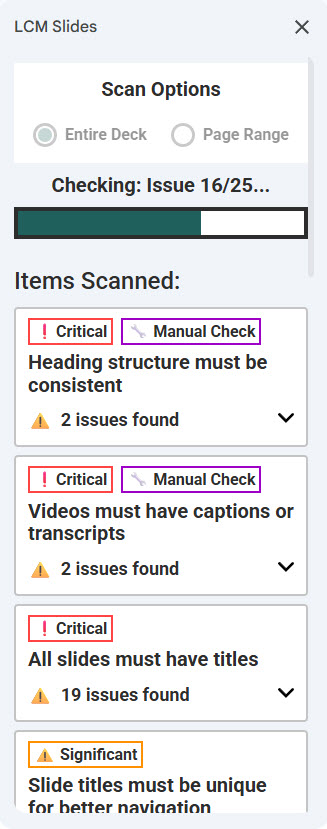
What accessibility issues does MySlides A11y check?
MySlides A11y reviews presentations for common issues identified in WCAG 2.1+ Level AA, including:
- Missing or inadequate alternative text on images
- Color contrast problems that affect readability
- Reading order issues for screen reader users
- Missing presentation titles and document language settings
- Structural and formatting problems that reduce clarity
- Media and animation warnings that may need captions or manual review
Who should check accessibility in Google Slides?
MySlides A11y is a useful add-on for anyone who creates presentations with Google Slides. You don’t need deep technical expertise or additional software. It’s particularly valuable for:
- Educators and students
- Designers and content creators
- Government and public-sector teams
- Organizations working toward accessibility best practices
How do I use MySlides A11y?
Get started with our Google Slides accessibility checker in just a few minutes:
- Install MySlides A11y from the Google Workspace Marketplace
- Open a presentation in Google Slides
- Launch the add-on from the Extensions/Add-ons menu
- Run a scan on the entire deck or a selected slide range
- Review the results, understand issues, and address them as needed
Example scenarios for using MySlides A11y
Accessible lecture slides for college students
Mateo has color blindness, a disability that affects 1 in 12 men and 1 in 200 women in the U.S. To him, the color red looks grey. Mateo has just started college and is looking forward to his first lecture.
His new professor, Dr. Chen, is creating a presentation for her students. Unaware of Mateo’s color blindness — and keen to use the school’s brand colors — Dr. Chen has used red headings on a grey background. Mateo won’t be able to read them. He may have to raise his hand, rely on the student next to him, or wait until after class to understand what he missed.
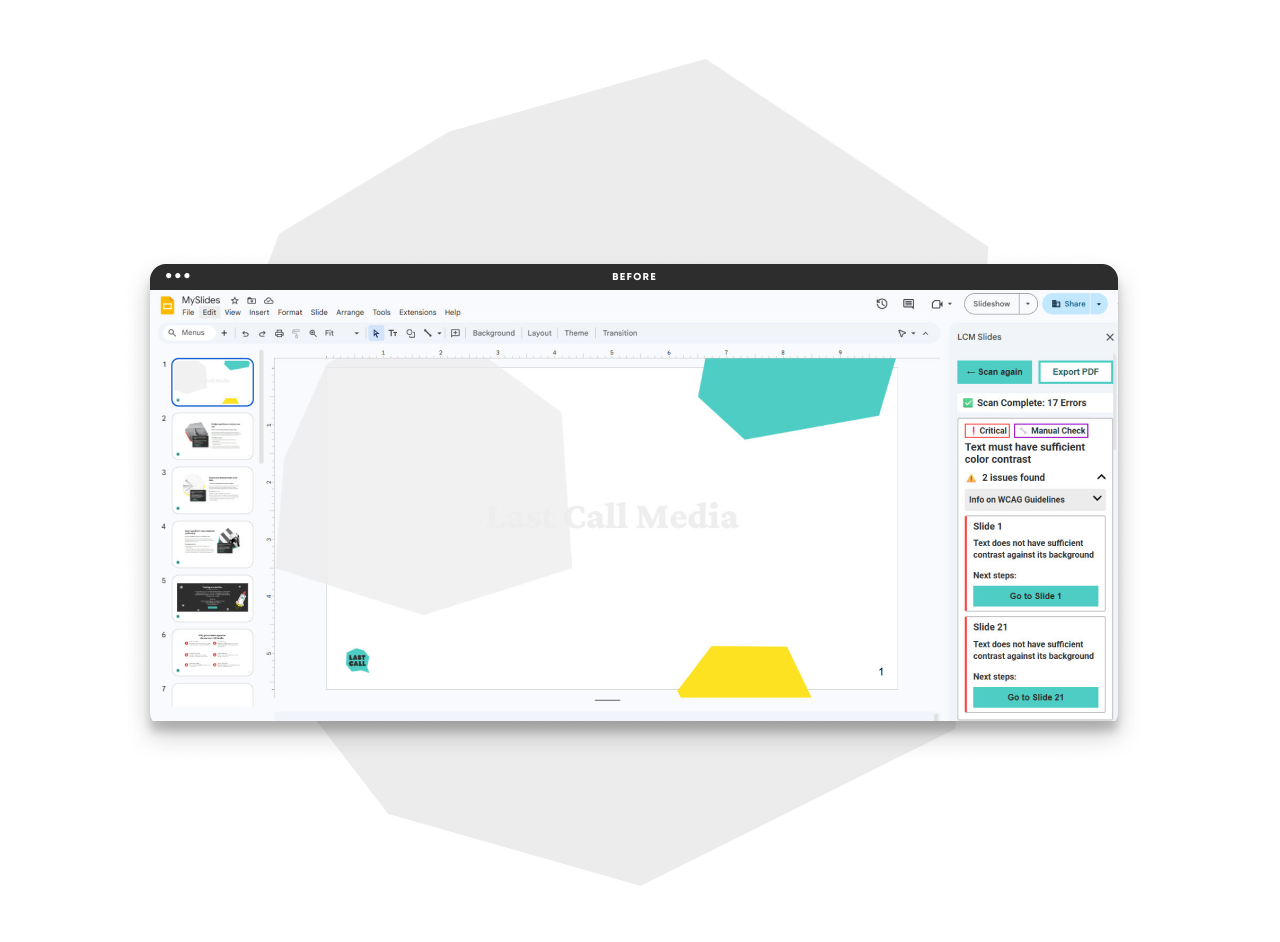
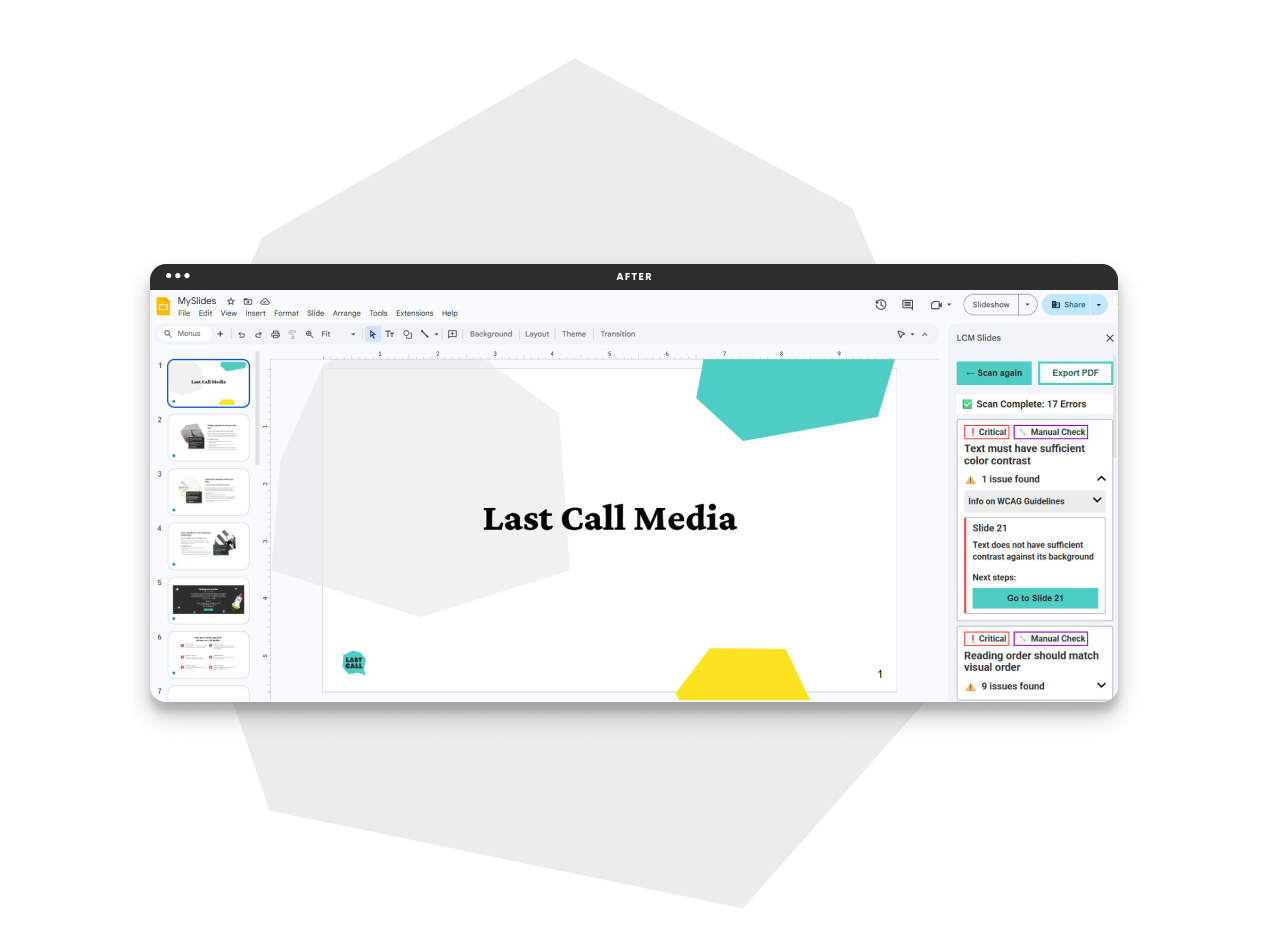
Thankfully, Dr. Chen scans her presentation with MySlides A11y. The tool flags insufficient color contrast as an accessibility issue. She updates the colors to increase the contrast. Now Mateo can read everything on the slides and focus on learning. Dr. Chen also exports the Google Slides accessibility check to PDF, helping her college review its compliance with the Americans with Disabilities Act (ADA) Title II.
 Slide downloads that work for screen readers
Nina works in government policy. She’s Blind and regularly uses a screen reader and refreshable braille display to read digital content. When she misses a recent conference on public service modernization, she downloads the slides to catch up. But the experience is frustrating. The information feels incomplete and confusing, but there’s no way for her to know what’s missing.
If the presenter had used MySlides A11y, they would have seen that none of the images of charts and diagrams had alt text, making it impossible for Nina’s screen reader to describe them. With those issues fixed, Nina could have gained important knowledge, and the presenter’s work would have had the intended impact.
Team presentations that include disabled colleagues
Grace is a project manager. She’s preparing a presentation for her team about the progress of their website development project. She wants to keep them engaged, so she adds lots of animated images and fancy transitions.
Jamal, one of the software engineers, has autism. He finds excessive movement and visual effects overwhelming. If Grace keeps the animations, Jamal will struggle to focus on what she’s saying, and he’ll feel mentally drained for hours afterward.
Before presenting, Grace runs her slides through MySlides A11y. The tool highlights animations as a potential accessibility concern. She tones them down and instead focuses on clear visuals and strong examples. The final presentation is easy and enjoyable for Jamal to follow. What’s more, it helps the whole team focus on Grace’s message, rather than being distracted by bells and whistles.
Make accessibility an everyday practice
Digital accessibility improves user experiences for everyone, including people with and without disabilities. It’s an integral part of human-centered design, which aims to solve the right problems for real people.
At Last Call Media, we’re committed to improving accessibility and helping others do the same. That’s why we empower our clients to meet WCAG 2.2 Level AA as a minimum and comply with ADA Title II and Section 508 where relevant. If your organization needs support or training to enhance accessibility, let’s talk.